7 Essential Notion Tutorial Tips for Effortless Productivity
Boost your workflow with our Notion tutorial featuring 7 essential tips for effortless productivity. Master databases, templates, and advanced organization today.
Notion has quickly become a favorite for professionals and students who want an all-in-one productivity solution. Its flexibility and range of features attract users from every industry.
However, many new users feel overwhelmed or struggle to organize their workspace. It is easy to miss out on powerful tools without the right guidance.
By learning just a few essential tips from this notion tutorial, you can streamline your workflow and make every day more productive. In this article, you will discover seven actionable strategies designed to help you get the most out of Notion with ease.
Why Notion Is the Ultimate Productivity Platform
Notion has rapidly emerged as a leading productivity platform, drawing millions of users who seek to streamline their digital lives. What sets Notion apart is its ability to combine notes, task management, databases, and collaboration in a single, unified workspace. For anyone searching for a comprehensive notion tutorial, it is essential to first understand the breadth of Notion’s capabilities.
Let’s look at how Notion compares with traditional productivity tools in terms of features and flexibility:
Feature | Notion | Evernote | Trello | Google Docs |
|---|---|---|---|---|
Notes | ✔️ | ✔️ | ❌ | ✔️ |
Databases | ✔️ | ❌ | ❌ | ❌ |
Task Management | ✔️ | Limited | ✔️ | Limited |
Collaboration | ✔️ | ✔️ | ✔️ | ✔️ |
Customization | High | Low | Medium | Low |
Integrations | Extensive | Moderate | Moderate | High |
Notion’s growth reflects its appeal. As of 2024, Notion boasts over 30 million users globally, with adoption rates soaring among professionals and students. According to recent surveys, teams using Notion report higher efficiency in managing complex projects and daily workflows.
The versatility of Notion is evident in its wide range of use cases:
Project management for teams and freelancers
Personal knowledge bases and digital journals
Collaborative wikis and documentation
Goal tracking and habit building
Customization is a core strength. Users can build tailored workspaces with databases, templates, and integrations that fit their unique needs. Notion’s cross-platform access ensures seamless productivity on desktop, mobile, and web.
However, new users frequently encounter challenges such as feeling overwhelmed by options, struggling with disorganization, or underutilizing features. A well-structured notion tutorial can address these pitfalls, offering step-by-step guidance to unlock Notion’s full potential. For those seeking practical strategies to get started, the How to Use Notion Effectively guide is a valuable resource.
Productivity experts highlight Notion’s unique flexibility. Unlike rigid tools, Notion adapts to personal workflows, whether you are a student planning assignments or a manager overseeing complex projects. By mastering core features and learning best practices, anyone can transform their approach to productivity.
7 Essential Notion Tutorial Tips for Effortless Productivity
Unlocking the full potential of Notion requires more than just curiosity. By following a strategic notion tutorial, you can transform your daily workflow, eliminate clutter, and truly harness the platform’s most powerful features. In this section, you will find seven actionable tips, each designed to help you master Notion with confidence and precision.
1. Master the Art of Databases
Databases are the backbone of any effective notion tutorial. They enable you to organize, visualize, and connect information in ways that traditional note-taking apps simply cannot match. With Notion, you can create tables, boards, lists, calendars, and galleries—each tailored for different workflows.
Start by exploring the five main types of databases:
Table: Ideal for structured data, like inventories or content calendars.
Board: Visualize tasks as cards, similar to Kanban boards.
List: A clean, linear list for quick overviews.
Calendar: Schedule events and deadlines with ease.
Gallery: Showcase projects with images and descriptions.
To boost your workflow, try setting up relational databases. For example, link a "Content Calendar" database to a "Writers" database. This enables you to assign articles, track progress, and connect related information seamlessly.
Efficient database use involves:
Filtering and sorting for focus, such as showing only current week’s tasks.
Grouping data by status, priority, or assignee for clarity.
Using different views to switch between table, calendar, or board perspectives.
A real-world scenario: Use a content calendar database to manage blog posts, deadlines, and drafts. Customize views to track articles by status or writer.
For a deeper dive, check out the Notion Database View Guide to master creating and customizing database views.
Quick tips for database mastery:
Duplicate templates for recurring structures.
Save favorite views for instant access.
Use rollups and relations to connect information across databases.
According to Notion’s tutorials, users who fully leverage databases in their notion tutorial report up to 30% higher productivity.
By understanding databases, you lay the foundation for a truly organized and powerful Notion workspace.
2. Harness Powerful Templates for Repetitive Tasks
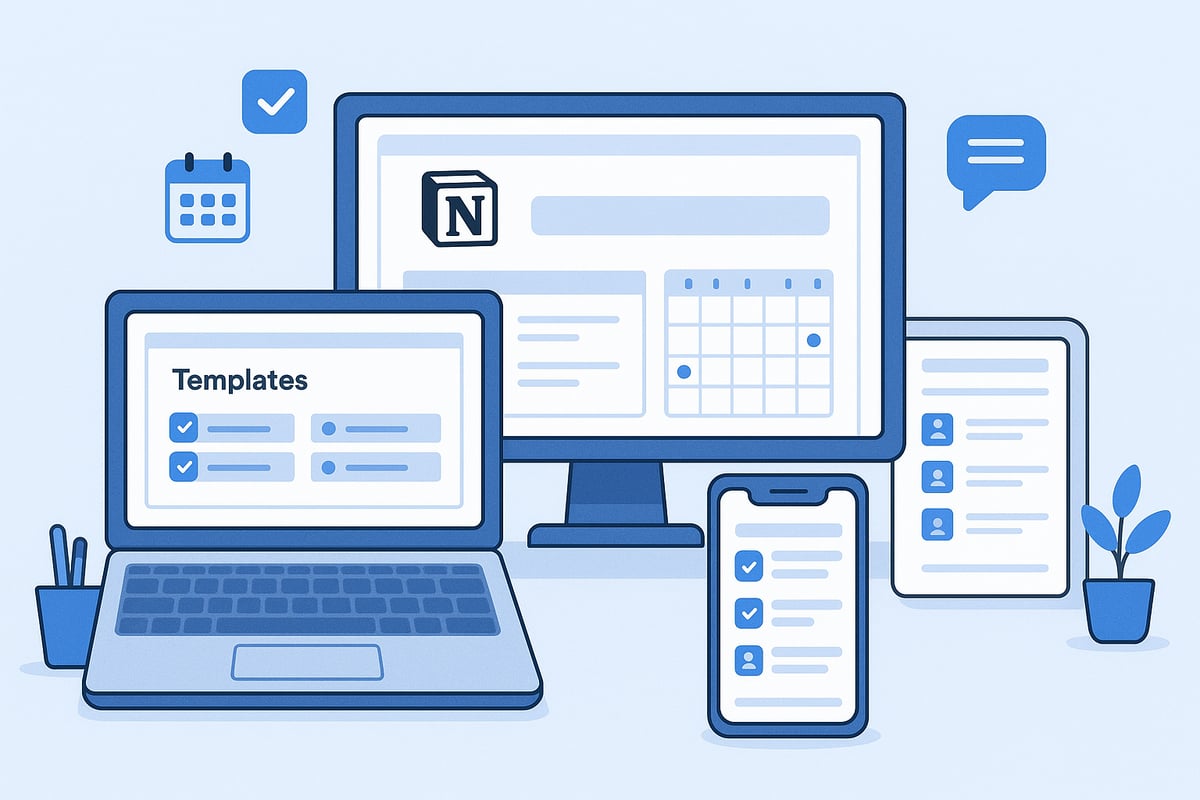
Templates are a cornerstone of any efficient notion tutorial, especially when dealing with recurring tasks. Notion’s built-in templates provide ready-made solutions for everything from weekly planners to meeting notes and goal trackers.
Accessing templates is simple:
Click "Templates" in the Notion sidebar.
Browse built-in and community options.
Duplicate any template into your workspace.
Customize templates to match your workflow. For instance, tweak a project tracker to include custom fields, or modify a weekly agenda to suit your team’s routine.
Some popular use cases:
Weekly planners to visualize tasks.
Meeting notes for structured documentation.
Goal trackers for personal or team objectives.
Templates reduce setup friction and save time. According to recent surveys, 60% of advanced Notion users rely on templates in their daily workflow.
Create your own template gallery for instant access to frequently used layouts. Organize them by category, such as "Content," "Personal," or "Team Projects."
For step-by-step guidance, visit this How to Use Notion Templates resource.
Benefits of using templates in your notion tutorial include:
Consistency across projects.
Time savings by avoiding repetitive setup.
Easy onboarding for new team members.
Embracing templates ensures you never start from scratch, allowing you to focus on work that matters most.
3. Supercharge Organization with Linked Databases
Linked databases are a game-changer in any notion tutorial, offering a way to create dynamic dashboards and connect information across pages. A linked database is essentially a mirror of an existing database, allowing you to display and filter data in multiple contexts.
To set up a master dashboard:
Create a new page, then type
/linkedto add a linked database.Select the target database you want to display.
Apply filters to show only relevant items, such as tasks due this week or projects assigned to you.
Syncing data across pages keeps your workflow unified. For instance, link your "Tasks" database to your "Projects" and "Notes" pages for holistic oversight.
Visual organization is simple:
Customize views—calendar, board, gallery—to suit your needs.
Use color coding, icons, and grouping for clarity.
Advanced users often leverage synced blocks for cross-page updates. This ensures changes made in one place reflect everywhere. For more on this, review the Notion Synced Databases Explained.
A real-world example: Freelancers use linked databases to manage client projects, invoices, and communication logs in a single dashboard.
With linked databases, your notion tutorial becomes a roadmap for building interconnected systems that scale with your needs.
4. Unlock the Power of Notion Shortcuts and Automation
Speed and efficiency are at the heart of any productive notion tutorial. Mastering Notion’s keyboard shortcuts can drastically reduce the time spent on repetitive actions.
Some essential shortcuts include:
/to open the command menu.Ctrl + Shift + Lto toggle dark mode.Ctrl + Dto duplicate a block.Ctrl + [andCtrl + ]to navigate back and forth.
Notion also supports automation through built-in features, like recurring tasks and reminders. For advanced automation, integrate with third-party tools such as Zapier or Automate.io. For example, you can auto-create tasks from emails or sync calendar events directly into Notion.
Here’s a quick table summarizing automation possibilities:
Action | Tool | Benefit |
|---|---|---|
Auto-create tasks | Zapier | No manual input needed |
Sync events | Google Calendar | Unified scheduling |
Batch update properties | Bulk Actions | Faster database edits |
Statistics show that power users save up to 2 hours per week by integrating shortcuts and automation into their notion tutorial.
To maximize efficiency:
Memorize the most-used shortcuts.
Set up recurring templates and reminders.
Explore integrations for seamless data flow.
Automating routine work frees up time for higher-value tasks, making your workflow truly effortless.
5. Structure Pages with Toggles, Headings, and Embeds
A well-structured page is a hallmark of a successful notion tutorial. Clear layouts not only improve focus but also enhance information retention.
Use toggles to hide detailed content until needed. This keeps main sections clean while allowing access to specifics on demand.
Headings and dividers help segment information, making pages easy to scan. For example, use H1 for main titles, H2 for sections, and H3 for subpoints.
Embedding media adds depth to your pages:
Videos for training or presentations.
PDFs for reference documents.
Google Docs for collaborative editing.
Example: Build an interactive knowledge base or a standard operating procedure (SOP) manual by combining toggles, headings, and embedded resources.
Best practices for page structure in your notion tutorial:
Keep sections brief and focused.
Use bullet lists and checklists for action items.
Limit visual clutter for minimal, scannable pages.
Data shows that well-structured pages improve retention by 25 percent. By organizing content thoughtfully, you ensure users find what they need quickly and efficiently.
6. Collaborate Seamlessly with Sharing and Permissions
Collaboration is a core benefit highlighted in any notion tutorial. Notion’s sharing and permissions system allows you to control who can view, comment, or edit your content.
Invite team members by email and assign appropriate roles:
View: For read-only access.
Comment: For feedback without edits.
Edit: For full collaboration.
Manage access at both workspace and database levels. For sensitive projects, restrict permissions to key stakeholders only.
A practical use case: Project managers assign tasks, share updates, and gather feedback within a shared workspace. Granular permissions ensure everyone has the right level of control.
Tips for secure sharing:
Regularly review access settings.
Use private pages for confidential information.
Enable two-factor authentication for added security.
Collaboration features include real-time comments, mentions, and updates. Teams using Notion report a 40 percent faster project turnaround, making it a top choice for efficient teamwork.
By mastering permissions in your notion tutorial, you foster a collaborative environment without sacrificing control.
7. Maintain Consistency with Tags, Properties, and Naming Conventions
Consistency is the secret ingredient in every effective notion tutorial. Tags and properties organize content across databases, making searching and filtering effortless.
Set up naming conventions for pages and databases. For example, prefix project pages with "PRJ_" or use dates in "YYYY-MM-DD" format for easy sorting.
Implement color-coded tags for priority, status, or category. Multi-select and checkbox properties help track progress or completion.
Practical tips:
Document your conventions in a reference page.
Review and update tags regularly.
Use consistent naming for all new entries.
Here’s a quick example table:
Tag | Color | Meaning |
|---|---|---|
High Priority | Red | Urgent tasks |
In Progress | Yellow | Ongoing work |
Completed | Green | Finished items |
Data indicates that consistent use of tags and naming in your notion tutorial reduces retrieval time by 35 percent.
By standardizing your approach, you ensure your workspace remains organized, searchable, and scalable as your needs evolve.
Advanced Notion Customization: Going Beyond Basics
Unlocking the real power of Notion goes far beyond simply taking notes or tracking tasks. Advanced customization lets you connect Notion to your favorite tools, build tailored productivity systems, and tap into a vibrant learning community. With the right approach, even a single notion tutorial can open doors to seamless workflows and continuous growth.
Integrating Notion with Other Productivity Tools
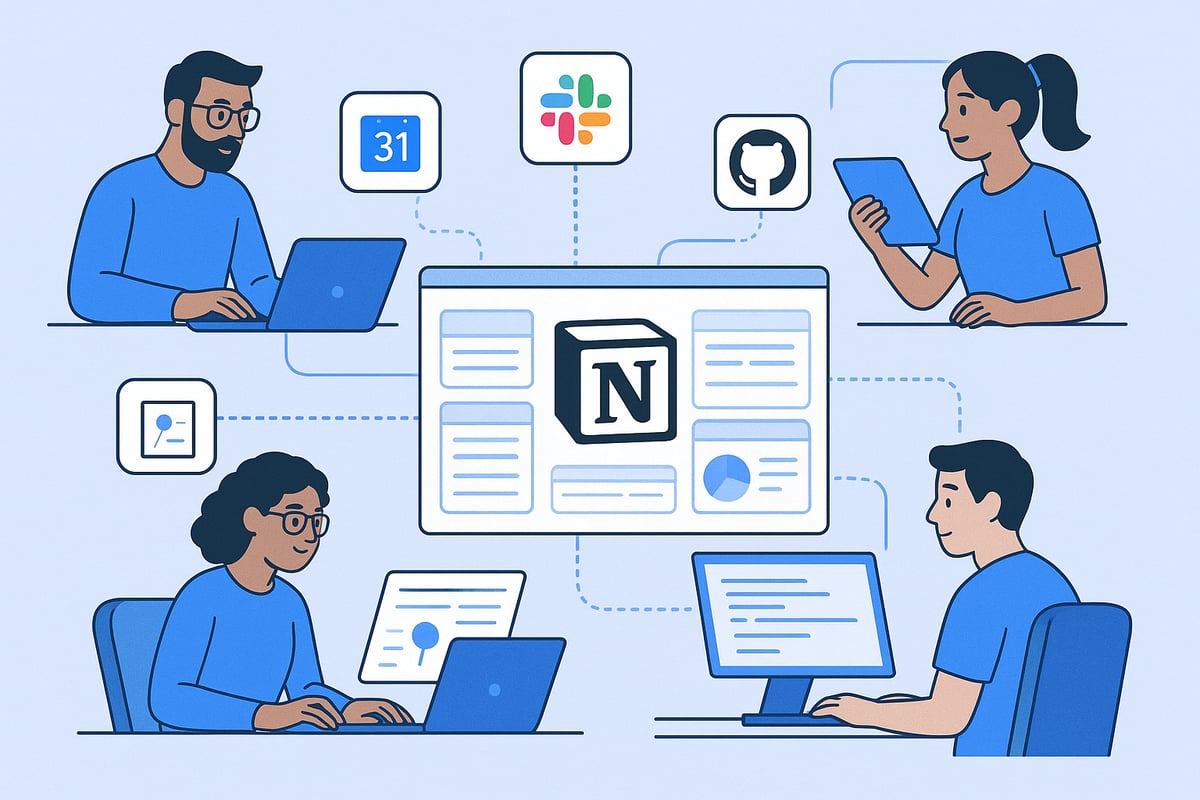
One of the most powerful aspects of Notion is its ability to connect with other productivity platforms. Integrations enable data to flow smoothly across your digital ecosystem, so you spend less time switching between apps and more time getting things done. For instance, syncing your Notion workspace with Google Calendar transforms scattered events into a unified schedule.
Notion’s native integrations support popular services like Slack, GitHub, and Google Drive. Through third-party tools such as Zapier, users can automate processes like creating Notion tasks from emails or updating project boards when GitHub issues change. The latest Notion 3.0 introduces AI agents, further enhancing automation and intelligent data handling within the platform.
Here’s a quick comparison of integration options:
Tool | Integration Type | Common Use Case |
|---|---|---|
Google Calendar | Native | Syncing events and tasks |
Slack | Native | Team notifications, updates |
Zapier | Third-party | Automating repetitive actions |
GitHub | Native | Tracking code issues |
With the right notion tutorial, you can set up these integrations for a truly connected workflow. Explore how automating routine actions with integrations can save time and prevent manual errors.
Building a Personalized Productivity System in Notion
A personalized productivity system in Notion is more than a collection of pages. It’s a living framework that adapts to your needs. Start by mapping out your workflow: What are your recurring tasks? Which projects need tracking? Do you need a content calendar, or an OKR (Objectives and Key Results) dashboard?
Combine databases, templates, and linked views to create a holistic system. For example, students might set up a dashboard linking class notes, assignments, and deadlines. Freelancers could connect client databases with invoice tracking and project boards. Managers often benefit from a master dashboard that pulls together meeting notes, team goals, and progress updates.
Follow these steps to build your system:
List your core workflows and needs.
Create databases for each major category (tasks, notes, projects).
Use linked databases to connect related information.
Customize templates for recurring tasks or reports.
Review and refine your setup monthly.
Each notion tutorial you follow can help you iterate and improve. Over time, your Notion workspace evolves into a productivity engine tailored just for you.
Community Resources and Learning Paths
Continuous learning is key to mastering advanced Notion features. The Notion community offers a wealth of tutorials, forums, and expert advice to help you level up. Platforms like YouTube host channels dedicated to Notion tips, while online forums and blogs provide inspiration and troubleshooting.
For those seeking a structured approach, a Comprehensive Notion learning guide can walk you through everything from basics to advanced techniques. Community templates and expert advice are invaluable for learning best practices and discovering new workflows.
Whether you are new or experienced, the right notion tutorial can accelerate your mastery and keep you ahead in productivity.
After exploring these seven essential Notion tips, you’re well on your way to a more organized and productive workflow. But if you want to take things even further, having the right templates can make all the difference—they help you apply these strategies quickly, without starting from scratch. BlocksPad offers expertly crafted Notion templates that fit a range of needs, from managing your budget to planning your next trip. If you’re ready to put these tips into action and simplify your daily routines, I encourage you to Discover Notion Templates for your next step.