Guide to Notion Synced Databases: Streamline Your Workflow 2025
Discover how Notion synced databases can streamline your workflow in 2025 with integrations, setup steps, best practices, and expert tips for team productivity.
Are you overwhelmed by scattered spreadsheets, endless email chains, and project updates lost in the mix? Many teams struggle to keep information organized, leading to missed deadlines and confusion.
Notion synced databases are changing the game in 2025. With this guide, you’ll discover how to bring all your essential data into one dynamic workspace. Imagine managing Jira, GitHub, and Asana tasks together, automatically updated and always in sync.
We’ll break down what synced databases are, show you step-by-step setup for top integrations, dive into advanced features, real-world examples, and best practices. Ready to boost productivity? Let’s get started.
Understanding Notion Synced Databases: The 2025 Landscape
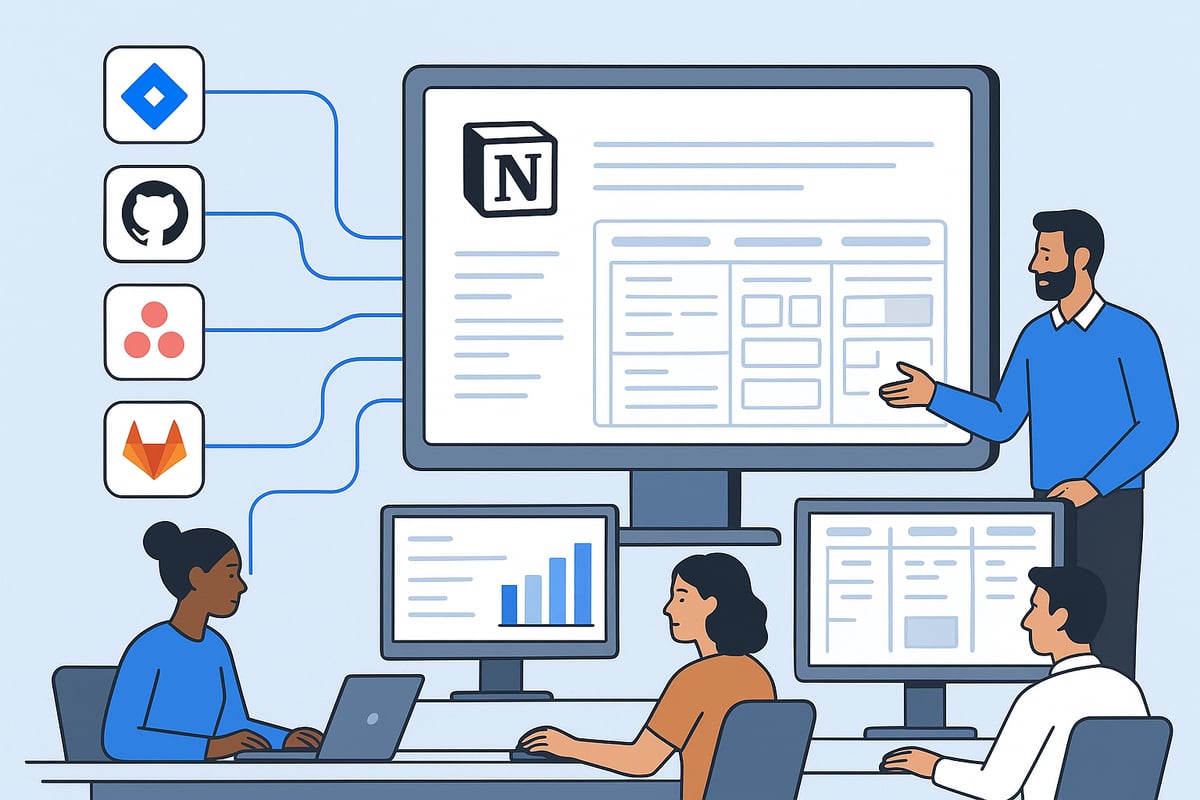
Feeling overwhelmed by scattered information? Notion synced databases are changing how teams manage complex projects in 2025. As organizations rely on multiple tools, the challenge of consolidating critical data into a single, actionable space has never been greater. Notion synced databases address this by letting you bring together key information from platforms like Jira, GitHub, Asana and GitLab, all within your Notion workspace.
What Are Notion Synced Databases?
Notion synced databases are a powerful feature that allows you to connect external project management tools directly into Notion. Once linked, these databases reflect live data from your source platforms, offering a central hub for cross-functional teams. For a comprehensive overview of setup and capabilities, you can visit Notion's Synced Databases Overview.
Supported Integrations in 2025
In 2025, Notion synced databases support top-tier integrations with Jira, GitHub, Asana, and GitLab. Each integration provides a seamless pipeline for importing tasks, issues, and project updates:
Jira: Sync epics, sprints, and issues for agile development.
GitHub: Track issues and pull requests for engineering transparency.
Asana: Import campaign tasks and timelines for marketing teams.
GitLab: Visualize merge requests, issues, and milestones.
Notion Business and Enterprise plan users now have the capacity to connect hundreds of external projects, making it easier than ever to manage large-scale operations.
How One-Way Sync Works
The core of notion synced databases is their one-way sync mechanism. Updates flow automatically from your source applications into Notion. This means you always see the current state of your projects without needing to switch between tools. Data integrity is preserved since edits in Notion do not push back to the original platforms, reducing the risk of accidental changes.
Security and Data Integrity
Security is a top priority for organizations. Notion synced databases are read-only for external data sources. This design ensures that sensitive information cannot be altered from within Notion, giving IT teams peace of mind. Only users with appropriate permissions in the source applications can make changes, and those updates are reflected in Notion in near real time.
Eliminating Data Silos and Improving Visibility
With notion synced databases, teams no longer face the frustration of data silos. All relevant information is visible in one place, promoting collaboration and transparency. Product managers, engineers, and marketers can view progress, blockers, and milestones side by side, regardless of the original tool.
Real-World Example: Unified Project Tracking
Imagine a workspace where Jira tasks and GitHub issues are displayed together in a single Notion dashboard. Teams can instantly filter by status, assignee, or deadline, making cross-team planning effortless. This unified view enables faster decision-making and keeps everyone aligned.
The Impact on Project Management Efficiency
Continuous, automatic updates are a game changer. Notion synced databases ensure that project data is always up to date, reducing manual reporting and status meetings. According to recent usage stats, organizations leveraging these integrations see significant time savings and improved cross-team communication.
As you explore the possibilities with notion synced databases, you'll discover a new level of efficiency and control over your workflow. The future of project management is here, and it's more connected than ever.
Setting Up Synced Databases in Notion: A Step-by-Step Guide
Ready to centralize your project data? Setting up notion synced databases is straightforward but requires attention to detail. Follow these steps to ensure a smooth integration and unlock the full power of your workspace.
Prerequisites and Access
Before you begin, confirm your team is on a Notion Business or Enterprise plan. Notion synced databases are exclusive to these tiers, so check your subscription first.
Make sure you have admin rights in both Notion and the third-party platforms you plan to connect. Only admins can authorize and manage integrations. For Jira and GitHub, review identity mapping for people properties to ensure tasks and issues are assigned correctly.
Security is critical. Assess the permissions you grant during setup, and discuss with your team who should have integration access. For a successful rollout, brief your team about upcoming changes and verify everyone has the necessary credentials. Proper preparation streamlines the process and prevents delays.
Connecting Third-Party Apps (Jira, GitHub, Asana, GitLab)
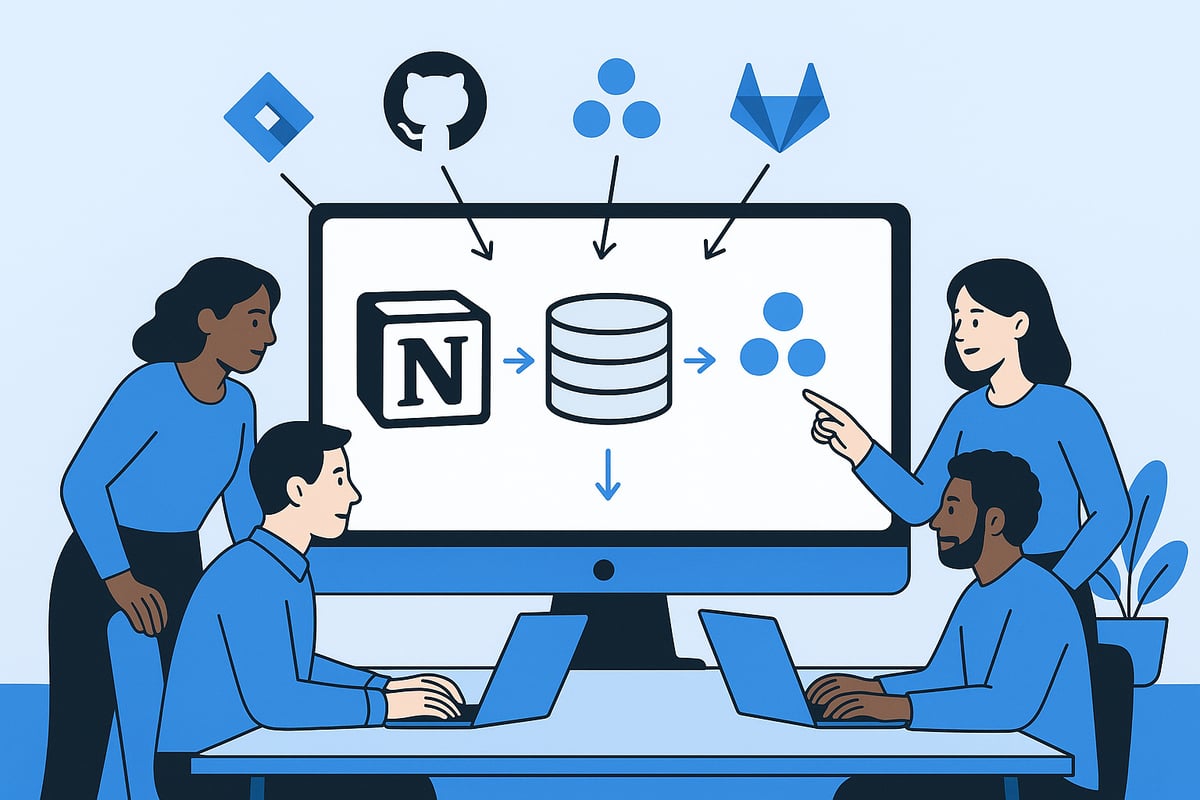
To start syncing external data, link your preferred apps to Notion. This process ensures your notion synced databases always reflect the latest updates from your project management tools.
Follow these steps for each integration:
Navigate to Settings & Members in Notion.
Select My connected apps.
Choose the app you wish to connect: Jira, GitHub, Asana, or GitLab.
Click Connect and sign in with your third-party credentials.
Grant the requested permissions to allow data sync.
Each platform has unique quirks. For example, Asana requires you to copy a project link from its internal share menu — not directly from your browser’s address bar. If you run into authentication issues, double-check your login details, ensure you have admin access, and review any security prompts.
Common troubleshooting tips include:
Re-authenticate if the connection fails.
Check that your Notion workspace is on the correct plan.
Verify permissions in both Notion and the external app.
Imagine a cross-functional team authenticating both Jira and GitHub. By connecting both, engineering and product leads can view issues and tasks side-by-side, making notion synced databases a central hub for real-time project visibility.
Creating a Synced Database in Notion
With your apps connected, you can now bring external data into Notion. Creating notion synced databases is simple and requires just a few clicks.
Step-by-step process:
In your external tool (Jira, GitHub, Asana, or GitLab), copy the link to the desired board, project, or issue.
Return to your Notion page and paste the link.
When prompted, select Paste as database.
Notion will automatically pull in items and properties from the source, displaying them in a default table view.
You can then explore and customize the imported data. Columns will match the properties from the source app, allowing you to filter, sort, and group information as needed.
For example, a marketing manager can pull an Asana project into Notion to track campaign tasks and deadlines in one place. If you want to learn more about customizing these setups, see this guide on how to use Notion templates to enhance your synced database experience.
Adding and Managing Database Properties
Enhance your notion synced databases by adding Notion-native properties like tags, notes, or custom priority levels. These fields help tailor the database to your team’s workflow.
Keep in mind:
Deleting a property in the source app will delete the corresponding row in Notion. Double-check before making changes.
If you add a property in Notion with the same name as one in the source, it won't sync and could cause confusion.
For example, if you want to prioritize GitHub issues, add a custom priority property in Notion. This lets your team track and sort tasks without affecting the original data.
By managing properties carefully, you keep your notion synced databases organized and aligned with both Notion and your external tools.
Customizing and Visualizing Synced Data in Notion
Visualizing information is central to making the most of notion synced databases. Customization tools in Notion let you turn raw, synced data into actionable insights for every team member.
Whether you manage engineering sprints, marketing campaigns, or cross-functional projects, the flexibility of notion synced databases ensures your workspace adapts to your workflow, not the other way around.
Creating Database Views for Maximum Clarity
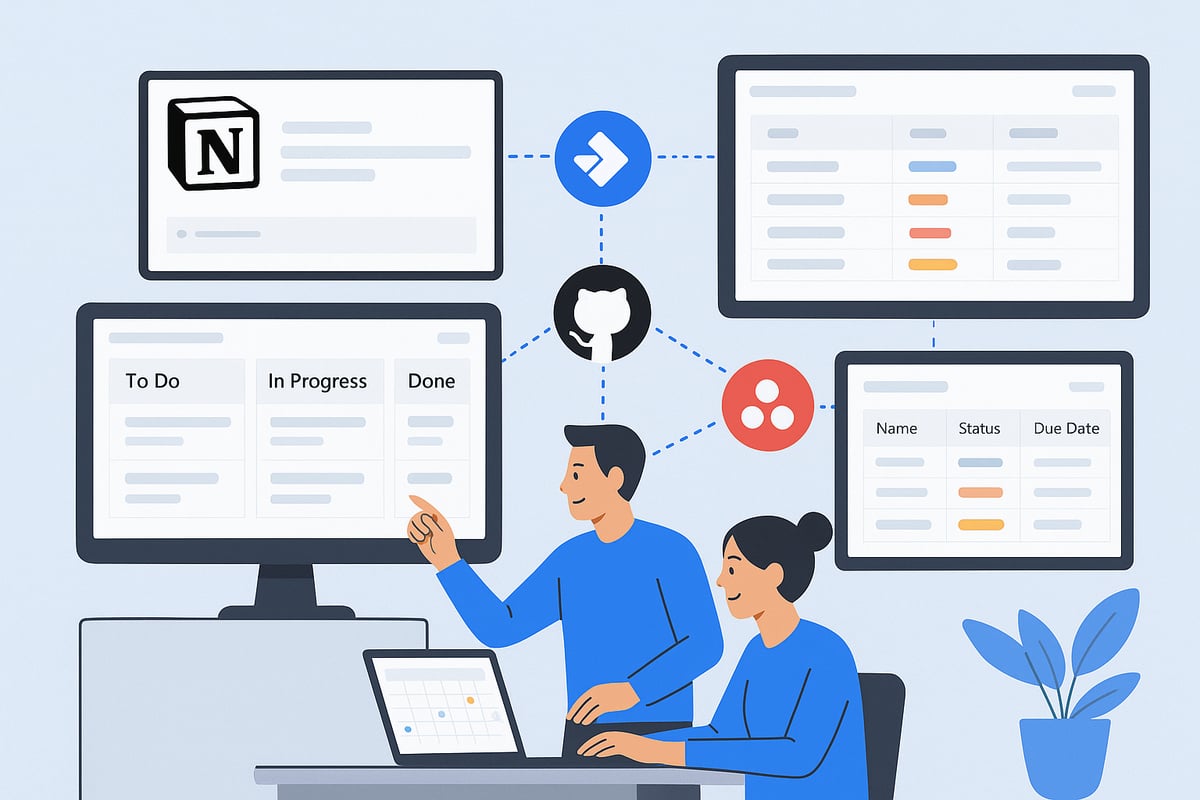
Notion synced databases allow you to visualize data in formats that fit your team’s needs. You can switch between Table, Board (Kanban), Calendar, Timeline, List, and Gallery views, making it easy to tailor the presentation of your synced data.
For example, a Kanban board view is ideal for agile teams tracking Jira sprints, while a calendar view helps marketing teams schedule campaign tasks from Asana. Filtering and sorting are straightforward—just set filters by status, assignee, sprint, or due date to focus on relevant information. Grouping tasks by engineer or project provides instant workload visibility.
Teams can create unlimited filtered views for different stakeholders, ensuring every department has a dashboard tailored to their workflow. If you're looking for inspiration on setting up dashboards for notion synced databases, the Notion dashboard templates guide offers practical examples and design tips.
With these customization options, your workspace becomes more than a data repository—it transforms into a dynamic center for project management and collaboration.
Advanced Properties: Relations and Rollups
The power of notion synced databases extends with advanced properties like Relations and Rollups. These tools let you connect synced data to other Notion databases, adding context and creating a holistic view of your projects.
To link synced databases, use the Relation property. For instance, you can automatically relate GitHub pull requests to project roadmaps. Enable "Automatically Relate" and use the @mention feature to establish seamless links between records. This approach reduces manual work and ensures data stays interconnected.
Rollup properties help you aggregate information from related databases. You might track the number of completed Jira tasks tied to a specific OKR, or count meetings held within a project phase. Here is a quick example:
Relation Example | Rollup Example |
|---|---|
Jira issues to OKRs | Total completed tasks per OKR |
GitHub PRs to Roadmap | PR status summary for milestones |
By leveraging these features, notion synced databases become a powerful analytics tool, offering insights from multiple sources in one unified workspace.
Managing People Properties and Identity Mapping
Managing people properties in notion synced databases ensures tasks are assigned accurately and accountability remains clear. When syncing data from platforms like Jira or GitHub, Notion uses identity mapping to connect external user profiles with your Notion team members.
This process allows for precise assignment of responsibilities. For example, when a task from a synced Asana project is imported, it can be mapped directly to the corresponding Notion user. This mapping streamlines communication and ensures everyone knows what they’re responsible for.
Accurate identity mapping within notion synced databases also supports better reporting and easier tracking of progress by individual or team. By centralizing assignments, teams can avoid confusion and work more efficiently, especially when dealing with large, cross-functional projects.
Real-World Use Cases: Streamlining Team Collaboration
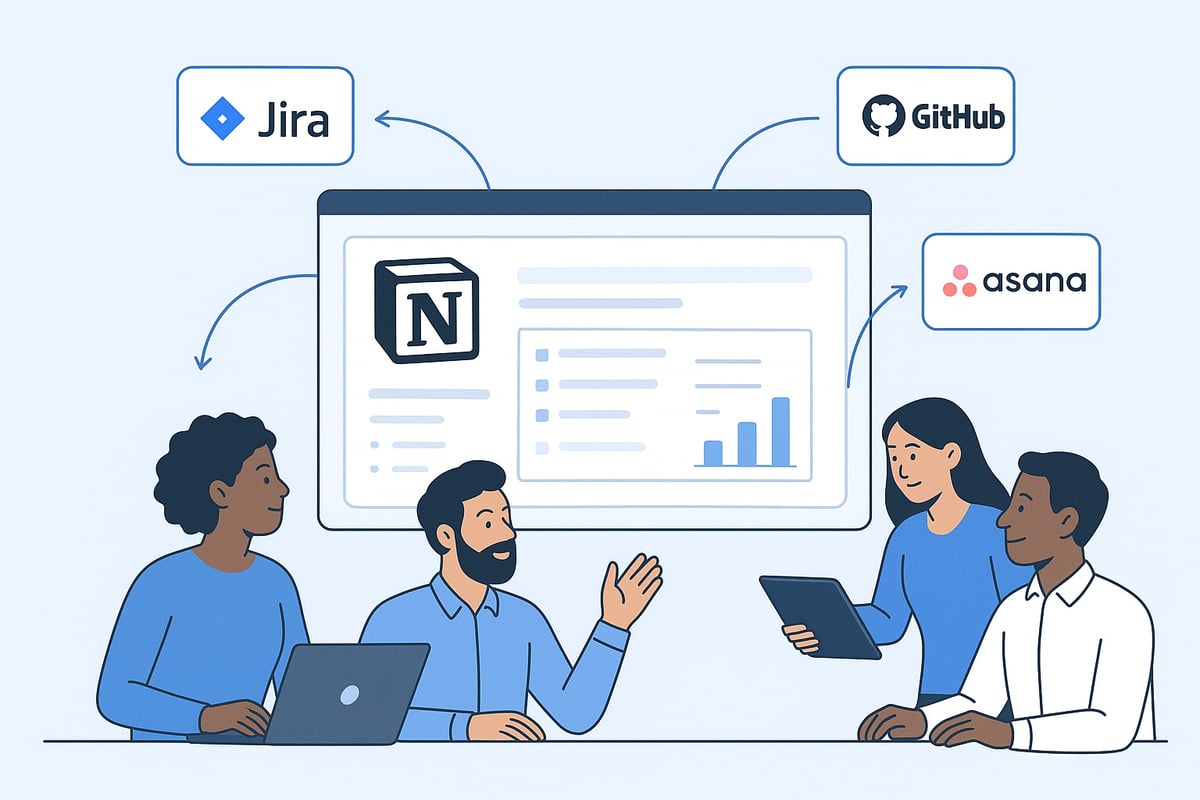
Modern teams often face the challenge of keeping everyone aligned when project data lives in separate tools. Notion synced databases offer a powerful solution, bringing together essential information from platforms like Jira, GitHub, and Asana. By centralizing these resources, teams can collaborate more efficiently and reduce the friction of context switching.
Engineering Teams: Agile Planning with Unified Data
Engineering teams rely heavily on up-to-date task boards and bug trackers. With notion synced databases, developers can visualize Jira issues, sprints, and bugs directly inside Notion. This means no more switching between multiple tabs or missing critical updates. Continuous, automatic sync ensures that task status, assignees, and deadlines are always current.
Teams can create custom filtered views, like Kanban boards grouped by sprint or engineer, to match their workflow. The read-only nature of synced data from external sources also protects data integrity, so engineers always see the latest information without accidental edits.
Product Managers: Transparent Project Tracking
For product managers, staying on top of GitHub issues and pull requests is vital for roadmap planning and release management. Notion synced databases pull this information into a single workspace, offering real-time visibility into development progress. Product teams can link GitHub issues to feature specs, prioritize tasks, and monitor blockers, all from within Notion.
By using database relations, product managers can connect synced items to key results or milestones, making progress tracking more transparent. The @mention feature enables quick linking to relevant documentation or stakeholders, fostering better communication.
Marketing Teams: Campaign Management Made Simple
Marketing teams often juggle multiple projects in Asana, from campaign calendars to content pipelines. Notion synced databases allow marketers to bring these Asana projects into Notion, where they can overlay additional context like creative briefs or meeting notes.
With customizable views, marketing leads can filter by status, owner, or deadline, keeping everyone focused on priorities. The one-way sync keeps data up to date, while read-only permissions reduce the risk of accidental changes. This approach streamlines campaign management and enhances cross-department visibility.
Example: Unified Project Dashboard
Imagine a summary dashboard in Notion that aggregates tasks from Jira, GitHub, and Asana into a single, interactive table. With notion synced databases, this becomes reality. Teams can see engineering issues, product feedback, and marketing deliverables side by side, filtered and grouped for each stakeholder.
For those seeking a ready-made solution, the Notion project manager dashboard template provides a fast start. This resource helps teams organize synced data for meetings, reviews, and strategic planning, saving hours on manual updates.
Key Benefits: Focus, Speed, and Seamless Collaboration
Personalized views in notion synced databases help team members cut through distractions and focus on what matters. Whether you are an engineer tracking sprint tasks or a marketer managing campaigns, you can tailor data displays for your needs.
Thanks to continuous syncing, updates from external sources appear in Notion within minutes. The @mention feature ties related tasks, docs, and conversations together, making it easy to share context. As a result, cross-functional teams collaborate smoothly, without the need to constantly switch tools.
For more tips on optimizing your workflow with Notion synced databases, explore Using Notion for work optimization and discover how leading teams are transforming their day-to-day operations.
Best Practices and Tips for Optimizing Synced Database Workflows
Unlocking the full potential of notion synced databases requires more than just setup. Teams must follow strategic best practices to ensure data remains accurate, projects stay organized, and collaboration flows seamlessly. Let’s explore proven methods for optimizing your workflow with notion synced databases.
Ensuring Data Integrity and Security
Protecting your information is essential when working with notion synced databases. Since these databases use one-way sync, always make changes in the original app. This prevents accidental data loss and keeps your records consistent.
Grant edit access in source platforms only to trusted team members. In Notion, use read-only permissions for synced databases to safeguard imported data. Regularly review who can connect or manage integrations, especially if your workspace changes.
Schedule audits to monitor permissions and integration health. By prioritizing these security steps, you can trust that your notion synced databases remain reliable and safe.
Organizing Large-Scale Projects
As your team grows, organizing data in notion synced databases becomes even more important. Start with clear naming conventions for each synced database. Consistent names help users find information quickly and avoid confusion.
Leverage filtered and grouped views to tailor dashboards for different departments or stakeholders. For example, create a master dashboard that aggregates tasks from multiple sources, giving executives a high-level overview while letting teams drill down into details.
Tip | Purpose |
|---|---|
Use naming standards | Quick search and retrieval |
Filtered views | Focus on relevant data |
Group by department | Department-specific insights |
Archive completed projects to keep your workspace fast and clutter-free. If you’re integrating several apps, a resource like the Notion Integrations List can help you discover additional tools that connect with notion synced databases and enhance your setup.
Careful organization ensures that notion synced databases remain scalable and efficient as your needs evolve.
Collaboration and Communication Strategies
Effective teamwork is easier when everyone is on the same page. Encourage your team to use @mentions for quick references and updates within notion synced databases.
Centralize meeting notes and discussions alongside synced data. This approach ensures that decisions and context are always accessible. Link related documents and databases to provide a complete view of any project.
When you embed communication and documentation with notion synced databases, you streamline workflows and reduce the risk of miscommunication.
Troubleshooting and Maintenance
Even well-organized notion synced databases can encounter issues like authentication errors or missing data. If you experience problems, start by re-authenticating your integrations and checking property names for mismatches.
Review permissions in both Notion and the source apps. Sometimes, a sync interruption is due to changes in access rights. For more complex setups, using a guide such as Integrating Notion with GitHub can provide step-by-step troubleshooting advice.
Regularly consult the Notion Help Center for updates on best practices. Proactive maintenance keeps your notion synced databases running smoothly.
Staying Ahead: Upcoming Features and Future Integrations
Notion is continuously expanding the capabilities of notion synced databases. Watch for new integrations beyond Jira, GitHub, Asana, and GitLab. Staying informed about these updates will help your team unlock even more streamlined workflows in the future.
As you start streamlining your workflow with Notion Synced Databases, it’s clear how much time and clarity you can gain by connecting your favorite tools in one place. If you want to skip the trial and error and get straight to organizing your projects, expenses, or campaigns, you might appreciate expertly crafted templates that fit right into these new capabilities. I recommend exploring BlocksPad’s Notion templates—they’re built by a certified Notion creator and tailored for synced workflows, so you can stay focused on what matters most.
Discover Notion Templates