Guide to Mastering Notion Database View in 2025
Master the Notion database view in 2025 with our expert guide. Learn to organize, visualize, and optimize your data with tips, real use cases and best practices
Imagine transforming how you work, plan, and collaborate with a single tool that adapts to any challenge. The notion database view stands at the heart of this evolution, offering flexibility for teams and individuals alike.
This guide will show you how to master every aspect of Notion’s powerful database views, so you can organize, visualize, and optimize your information with confidence.
You will learn the basics, explore each view type, discover advanced customization, and see real-world examples for every need. Ready to unlock your productivity potential? Let’s dive in and start mastering database views today.
Understanding Notion Databases and Views
Notion has revolutionized the way individuals and teams organize data, thanks to the flexibility of its databases. At the core of this system is the notion database view, a feature that allows users to tailor how information is displayed and interacted with.
What is a Notion Database?
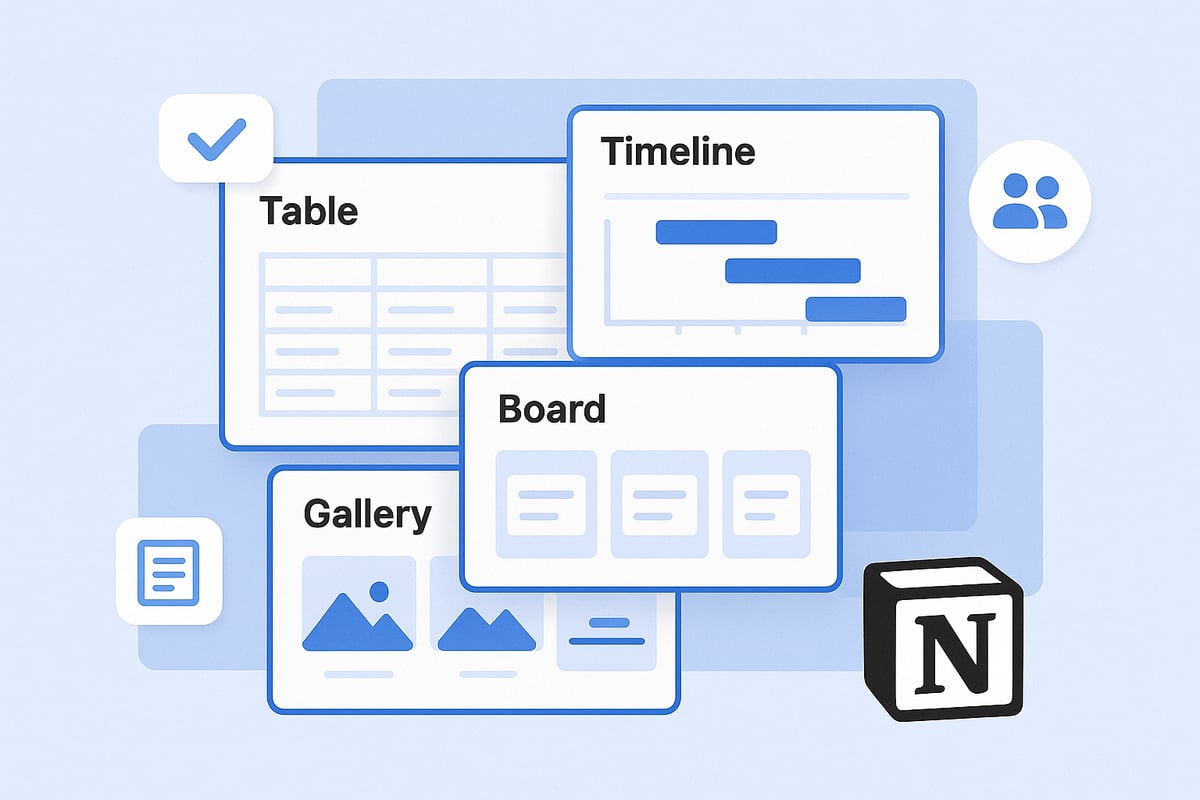
A Notion database is much more than a simple table. It is a dynamic collection of pages, each with customizable properties. These databases can be structured in several formats, including Table, Board, Timeline, Calendar, List, and Gallery. Each format offers a distinct way to visualize and interact with your content.
Every entry within a Notion database view is itself a full Notion page. This means you can nest content, attach files, and add comments or checklists directly inside each item. This page-within-a-page structure is one reason Notion stands out among productivity tools.
Notion databases are commonly used for:
Project management boards
Customer relationship management (CRM) systems
Content planning calendars
One of the most impressive aspects of a notion database view is its scalability. Notion databases can efficiently handle thousands of items without sacrificing performance. This makes them suitable for both small personal projects and large enterprise workflows.
The main benefits of using databases in Notion include:
Centralized knowledge management
Seamless team collaboration
Highly dynamic organization of information
If you are just starting, the Notion Databases for Beginners (2025) guide offers a thorough introduction to every database type and their unique strengths.
The Role of Views in Notion
The true power of a notion database view comes from its ability to present the same data in multiple, customized ways. In Notion, a "view" refers to a specific arrangement or visualization of your database, such as Table, Board, Gallery, Timeline, Calendar, or List.
You can create several views for a single database, each tailored to different needs or preferences. For instance, a project management team may use the Table view for tracking project details, while the marketing team prefers the Calendar view for scheduling campaigns. This flexibility ensures that everyone can access the information they need in the most effective format.
Views also support grouping, filtering, and sorting, giving users the ability to create personalized dashboards or focused lists. This means that a notion database view not only organizes your data, but also adapts to your workflow. For example, a company-wide roadmap can be seen as a Timeline for executives, a Board for developers, and a Calendar for marketing, all using the same underlying data.
A key advantage is data consistency. Any change made in one notion database view is instantly reflected across all other views. This keeps teams aligned, reduces duplication, and ensures everyone works with the latest information.
By leveraging these features, you can transform complex information into clear, actionable insights, making Notion a cornerstone for modern knowledge management.
Exploring Each Notion Database View Type
Unlocking the full potential of a notion database view starts with understanding its diverse display formats. Each view type transforms how you see and interact with your data, making organization and analysis effortless. Let’s examine every view, their strengths, and how you can tailor them for any workflow.
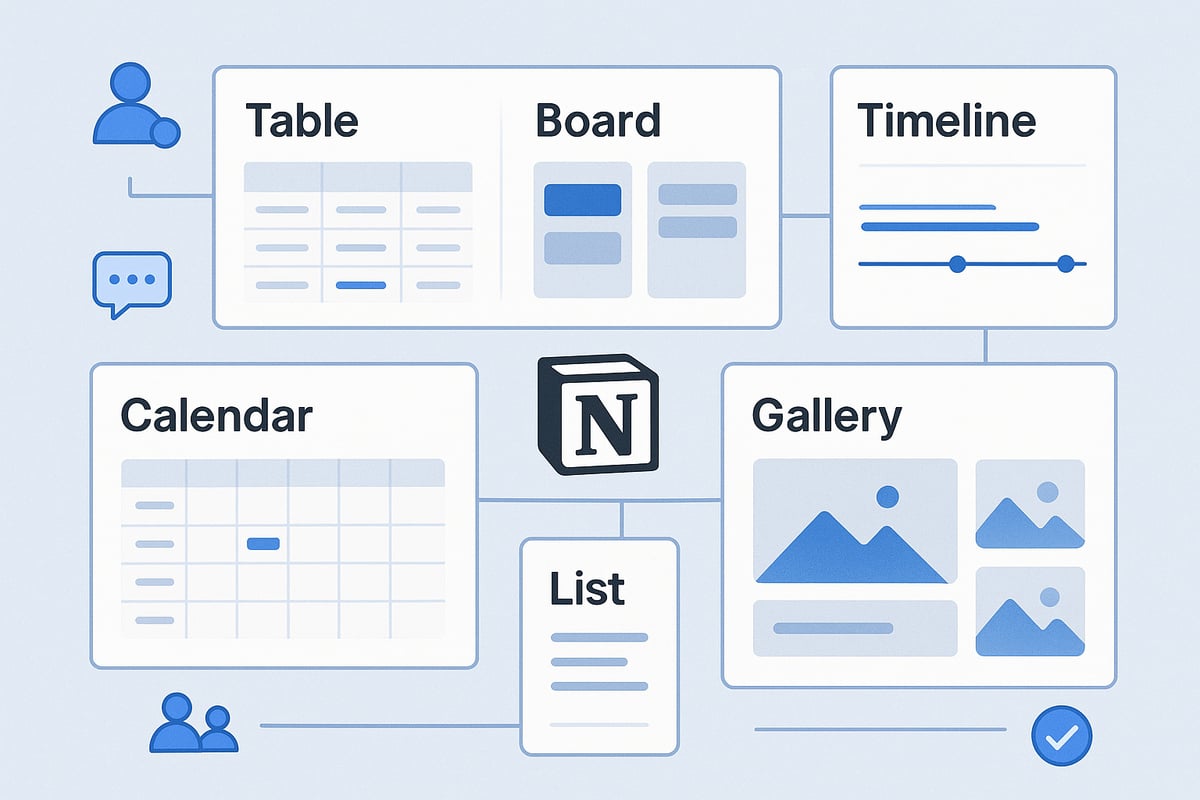
Table View
The Table view is the classic spreadsheet-like format in Notion, presenting your data in rows and columns. Every row is a full-featured page, while columns serve as customizable properties such as text, select, date, or person.
This notion database view excels at providing a high-level overview, especially when you need to manage large datasets or track multiple projects. Teams frequently use Table views for project trackers, where each item displays details like owner, deadline, and status.
You can:
Show or hide properties to reduce clutter
Drag and drop rows to reorder items
Filter and sort data for focused insights
Example Table View Properties:
Project Name | Owner | Status | Deadline |
|---|---|---|---|
Website Redesign | Alice | In Progress | 2025-04-01 |
Marketing Launch | Bob | Complete | 2025-02-15 |
App Update | Carol | Not Started | 2025-06-10 |
The Table view remains the most popular notion database view for teams managing complex information, thanks to its flexibility and clarity. For further reading on when to use each view, see Notion's Official Guide on Database Views.
Board View
Board view brings a kanban-style layout to your workspace. It organizes entries into vertical columns, grouped by properties such as status, project type, or assignee.
This notion database view is ideal for visualizing workflows, like project pipelines or editorial calendars. Each item appears as a card that you can move between columns, instantly updating its status.
Board view customization includes:
Grouping by select, multi-select, or person properties
Drag-and-drop functionality for real-time status changes
Color-coding cards for clarity
Example: An editorial workflow with columns for “Idea,” “Draft,” “Review,” and “Published” streamlines content progress tracking. This notion database view empowers teams to spot bottlenecks and manage workloads with ease.
Timeline View
Timeline view offers a horizontal, Gantt chart-style visualization, mapping projects or tasks over time. Each entry displays as a bar spanning its start and end dates, making it simple to track dependencies and overlapping activities.
This notion database view is a favorite for product launches, campaign planning, and resource allocation. Customization options let you adjust time scales (day, week, month, quarter) and toggle visible properties.
Key features:
Visualize project durations and milestones
Detect scheduling conflicts instantly
Drag items to reschedule with ease
Example: A product launch plan showing overlapping development, marketing, and QA tasks. Timeline view adoption surged among remote teams in 2024, reflecting its value for distributed project management.
Calendar View
Calendar view displays your data as events on a monthly or weekly grid. Each entry appears as a clickable event that opens a full Notion page, perfect for scheduling and planning.
This notion database view is essential for teams managing content calendars, campaign launches, or meeting schedules. You can quickly add new items, drag events to adjust dates, and toggle which properties show on each card.
Plan upcoming launches and deadlines visually
Sync meetings, editorial schedules, and recurring tasks
Color-code events by category or owner
Example: Marketing teams rely on Calendar views to manage social media content across multiple channels, ensuring campaigns run smoothly and deadlines are never missed.
List View
List view presents a simple, minimalist stack of database entries. Each item is a page, with optional properties visible beside the title.
This notion database view is perfect for meeting notes, centralized documentation, or straightforward task lists. Its uncluttered design keeps focus on essential information.
You can customize List view by:
Toggling properties on or off for clarity
Sorting and filtering items for relevance
Example: A centralized list of recurring meetings, displaying attendees and agenda topics, helps teams stay organized without overwhelming detail.
Gallery View
Gallery view turns your database into a visual grid, showcasing image-rich pages as cards. Each card highlights a cover image, title, and selected properties, making it ideal for creative or people-focused data.
This notion database view is favored by designers, HR teams, and marketers. Common uses include design asset libraries, employee directories, and inspiration boards.
Customization options:
Adjust card size for more or less detail
Choose which properties and images to display
Group or filter cards for tailored views
Example: A branding mood board, where every card represents a different color palette or logo concept. Statistics show creative teams increasingly prefer Gallery view for intuitive, visual organization.
Setting Up and Customizing Database Views in 2025
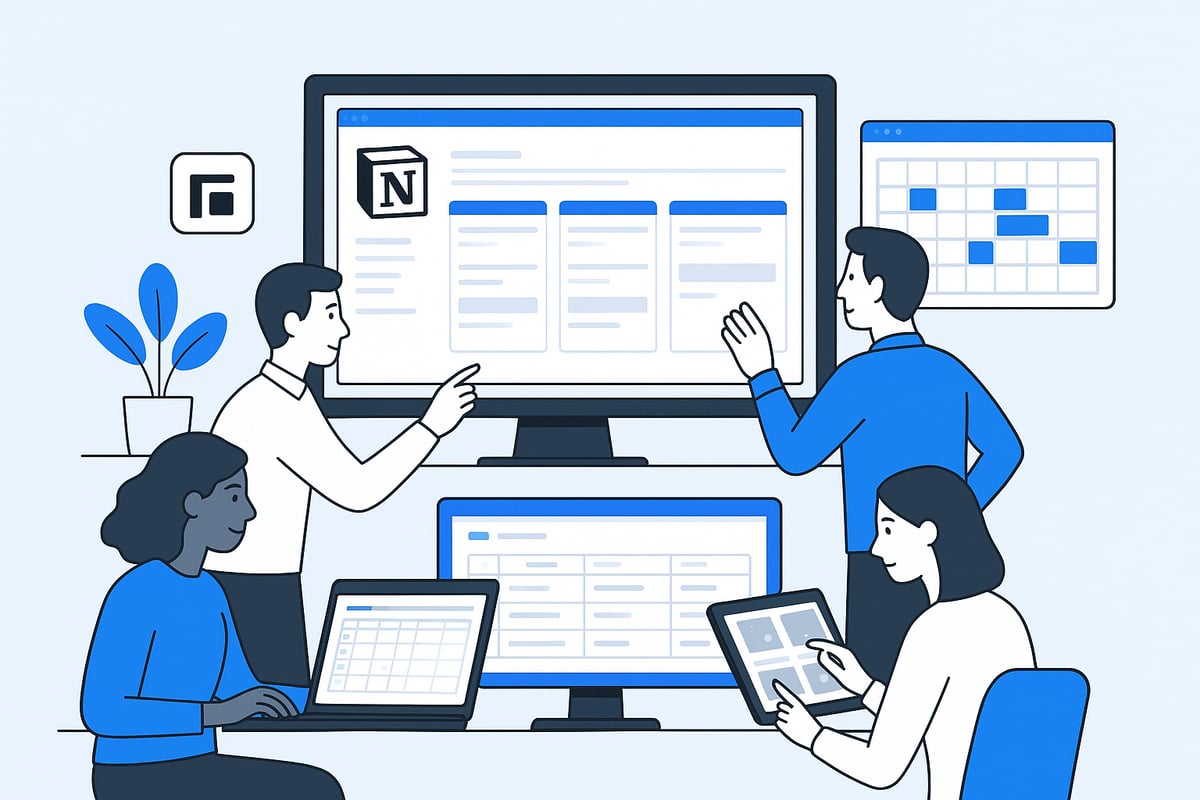
Setting up your notion database view for 2025 is a streamlined process that empowers you to tailor information to any workflow. By following clear steps, you can create, configure, and customize databases and their views for optimal productivity and collaboration.
Step 1: Creating a Database
To begin, add a new database in Notion by typing “/Database” on a page or by using a template. Choose the database type that fits your project, such as Table for structured data, Board for Kanban workflows, or Calendar for date-driven tasks.
Each entry in a notion database view acts as a full Notion page, which means you can nest content, attach files, and add detailed notes. For project management, start with a Table database, where columns represent properties like Owner, Deadline, and Status. This structure allows for easy expansion as your project grows.
When planning, think ahead about what properties you will need. For example, a marketing team might include fields for Campaign, Channel, and Launch Date. This ensures your notion database view remains scalable and adaptable as requirements evolve.
Step 2: Adding and Configuring Views
Once your database is in place, you can create multiple views to visualize your data in different ways. Click the “+ Add a view” button at the top of your database. Give your view a descriptive name, such as “Sprint Board” or “Editorial Calendar,” and select the type: Table, Board, Timeline, Calendar, List, or Gallery.
Notion lets you seamlessly switch between views, making it simple to access the perspective you need. For instance, a Table view might display all tasks, while a Board view organizes them by status. This versatility is essential for teams that require both high-level overviews and focused task lists.
To dive deeper into effective configuration strategies, you can explore How to use Notion effectively for practical tips on maximizing your notion database view setup.
Step 3: Customizing Properties and Layout
Customizing your notion database view is all about making information clear and actionable. Edit properties by adding new columns, removing unnecessary fields, or modifying data types. For each view, you can decide which properties to show or hide, ensuring only the most relevant information is visible.
Use grouping options to cluster items by property, such as grouping tasks by Assignee in a Board view. Sorting lets you prioritize entries, for example, by moving urgent tasks to the top. Filtering allows you to display only items that meet certain criteria, like tasks due this week.
For example, a content team might group articles by writer and filter the list to show only drafts in progress. This degree of customization ensures every notion database view is tailored to your workflow.
Step 4: Advanced Filters and Sorting
Advanced filters and multi-level sorting are vital for managing large or complex datasets. Set up filters to display only relevant information, such as showing tasks with a high priority or deadlines within the next seven days. Use multiple filters in combination to refine your view even further.
Sorting can be applied by one or more properties, like Status, Deadline, or Priority, so the most important items always appear first. For instance, in a Calendar view, you might filter to show only marketing events and sort them by date.
These tools make your notion database view dynamic, allowing you to surface the right data at the right time without manual searching.
Step 5: Collaborative Features and Permissions
Collaboration is at the heart of every effective notion database view. You can share views with your team or specific individuals, making it easy to keep everyone aligned. Use the “Share” menu to set permissions, allowing users to either view or edit content as needed.
For sensitive data, such as HR information, restrict access so only authorized personnel can see or modify the relevant data. For example, HR may have exclusive access to a Gallery view of employee profiles, while other teams see only project-related data.
By leveraging these features, your notion database view becomes a central hub for teamwork, transparency, and security.
Best Practices for Organizing and Managing Data with Notion Views
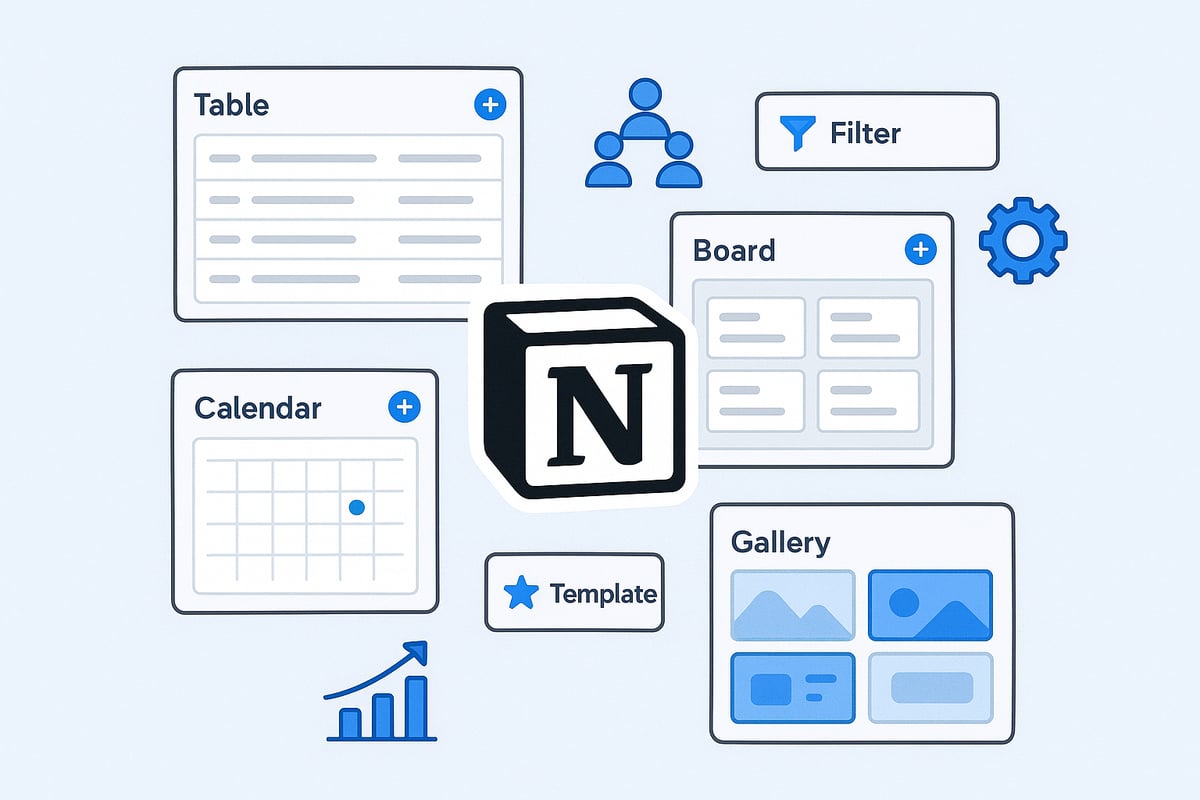
Unlocking the full potential of your notion database view requires thoughtful planning and strategic management. By applying best practices, you can ensure your data remains organized, scalable, and accessible for every team and project.
Structuring Databases for Scalability
A sustainable notion database view begins with careful structuring. Define clear properties for each database, such as text, numbers, dates, and select fields. Use consistent naming conventions to avoid confusion as your workspace grows.
Plan for future needs by anticipating new data types.
Standardize tags, statuses, and categories across all databases.
Regularly review and update properties to maintain relevance.
For more in-depth guidance on advanced structuring, consider exploring Mastering Notion Databases, which covers essential techniques for scalable organization.
Leveraging Multiple Views for Different Stakeholders
The true strength of a notion database view lies in its flexibility. Create tailored views for each stakeholder group, ensuring everyone accesses the information they need without overload.
Engineering teams may prefer a Timeline view for project milestones.
Marketing teams can use a Calendar view for campaign planning.
HR departments might benefit from a Gallery view for employee profiles.
By customizing each notion database view, you offer clarity and focus, boosting team productivity and transparency.
Utilizing Linked Databases and Database Containers
Maximize efficiency by embedding linked databases and using database containers. A linked notion database view lets you display the same data in multiple contexts, making updates seamless across your workspace.
Create a project hub with views for tasks, resources, and deadlines.
Use pages a containers to group related databases in one dashboard.
Filter and sort linked databases for context-specific insights.
This approach empowers teams to maintain a centralized source of truth while adapting each notion database view to their workflow.
Optimizing Performance and Load Times
As your databases grow, maintaining speed is crucial. Optimize each notion database view by archiving outdated data and minimizing unnecessary properties.
Regularly archive completed projects to keep views lean.
Limit visible properties to only those needed for each view.
Use filters to display only active or high-priority items.
These habits ensure your notion database view loads quickly and remains user-friendly, even at scale.
Templates and Automation
Leverage templates and automation to streamline repetitive tasks in your notion database view. Templates provide ready-made structures for common workflows, saving setup time and promoting consistency.
Use Notion’s template gallery for project plans, meeting notes, and more.
Implement database buttons to automate status changes or task creation.
Set up workflows to auto-generate recurring items.
By automating routine actions, your notion database view becomes a powerful engine for productivity, giving your team more time to focus on meaningful work.
Advanced Tips and Real-World Use Cases
Unlocking the full potential of the notion database view means going beyond the basics. Whether you are managing complex projects, integrating with external tools, or building dynamic dashboards, mastering advanced strategies can transform your Notion workspace. Explore these expert tips and real-world examples to elevate your workflow.
Power User Features for 2025
In 2025, the notion database view introduces a suite of power user features designed to streamline information management. Enhanced AI integration now suggests filters, automates repetitive workflows, and even identifies data inconsistencies. Database automations allow you to trigger actions based on property changes, such as sending notifications when a task status updates.
Relations and rollups connect multiple databases, enabling real-time insights across projects. For example, you can link a CRM database to a sales pipeline, so closing a deal in one view instantly updates related tasks elsewhere. These features make the notion database view a central hub for connected, intelligent workflows.
Integrating Notion with Other Tools
The notion database view truly shines when integrated with your team’s favorite tools. Seamless connections to Slack, Google Calendar, Jira, and GitHub keep your data synchronized and actionable. Imagine syncing deadlines from a Notion Timeline directly to Google Calendar, ensuring everyone stays on track.
Integration usage among enterprise teams rose 30% in 2024, reflecting the growing demand for connected workspaces. If you want to take it further, learn about using synced databases in Notion to unify data from different sources and provide a single source of truth for your team.
Custom Dashboards and Reporting
With a notion database view, you can create custom dashboards that bring together multiple perspectives in one place. Build executive dashboards that display project progress, deadlines, and resource allocation using embedded charts and filtered views.
Dashboards empower leaders to make data-driven decisions at a glance. For step-by-step guidance, explore the Notion dashboard templates guide for practical tips on building powerful, actionable dashboards that leverage the full capability of Notion database views.
Dashboard Element | Purpose | Example Use |
|---|---|---|
Progress Bars | Track project completion | Product launch dashboard |
Embedded Charts | Visualize key metrics | Sales pipeline overview |
Filtered Views | Focus on priorities | Weekly team status updates |
Case Studies: Notion Database Views in Action
Real-world teams rely on the notion database view to streamline their daily operations. For instance, a company roadmap might use multiple views—leadership sees high-level launches, engineering tracks timelines, and marketing plans campaigns in a Calendar view.
Editorial teams manage content calendars using both Board and Calendar views to visualize the production pipeline. HR teams onboard new hires with a Gallery view for employee profiles and a Timeline for task tracking. Teams with custom dashboards report making decisions 25% faster, showcasing the measurable impact of these advanced strategies.
Resources and Further Learning
To deepen your expertise with the notion database view, tap into the wealth of available resources. Notion Academy and the Help Center offer advanced tutorials, while community template galleries spark inspiration for new setups.
Stay ahead of the curve by following YouTube channels and blogs dedicated to Notion tips and updates. With these resources, you will continue to discover innovative ways to perfect your database views and keep your workflow agile.
Troubleshooting and Optimizing Your Notion Database Views
Troubleshooting your notion database view setup is essential for maintaining a streamlined workflow. Even the best-designed databases can encounter slow load times, unexpected data visibility issues, or confusing filters. If you notice missing tasks or sluggish performance, start by archiving outdated items and simplifying properties. For team-based workflows, reviewing practical strategies in guides like Notion for project management workflows can help you identify and resolve common pitfalls with database views.
Common Issues and Solutions
When working with a notion database view, slow performance is often caused by large data sets or numerous properties. To address this, archive completed projects regularly and limit visible properties to only what is necessary. If data seems to disappear, double-check your filters and permissions, ensuring that the correct views are active. Troubleshooting filtered board views often involves reviewing hidden filters or property mismatches.
Maintaining Data Consistency
Maintaining consistent data within your notion database view requires routine audits. Schedule monthly reviews to identify duplicate or outdated entries. Use relations and rollups to minimize redundant information and keep your data clean. Conducting these checks ensures that your databases remain reliable and actionable for every team member.
Security and Permissions Management
A secure notion database view structure depends on carefully managed permissions. Assign granular access to sensitive information, limiting editing or viewing rights as needed. For example, HR databases should be visible only to authorized personnel. This practice safeguards confidential data while still enabling collaboration where appropriate.
Staying Updated with Notion Changes
Staying current with Notion updates is vital for optimizing your notion database view experience. Regularly check for new features and improvements, especially those related to AI-powered filtering or sorting. Adjust your workflows to take advantage of these enhancements, ensuring your database views remain modern and efficient throughout 2025.
Expert Tips for Ongoing Optimization
To keep your notion database view operating at its best, schedule periodic reviews of all views for relevance and usability. Gather feedback from your team to identify pain points and areas for improvement. Quarterly database review meetings help ensure your setup evolves, keeping information clear, accessible, and aligned with your goals.
Now that you have a solid understanding of how to master Notion database views and tailor them to your unique goals, the next step is finding a setup that truly fits your workflow. If you want to save time and start with a thoughtfully crafted foundation, I recommend exploring expertly designed templates. At BlocksPad, you'll find a range of Notion templates created to help you organize everything from projects to daily routines—each built with real-life challenges in mind. Take the stress out of building from scratch and Discover Notion Templates to elevate your productivity journey.