Ultimate Guide to Notion Calendar for Productivity 2025
Master your productivity in 2025 with our ultimate Notion Calendar guide covering features, setup, integrations, expert tips, real use cases, and top templates.
Imagine if every meeting, deadline, and task lived together in one easy-to-use calendar. No more juggling between apps or missing important dates.
With the right strategy, Notion Calendar can become your single source of truth for both work and life.
This guide will help you unlock the full potential of this tool in 2025. You will learn about its standout features, step-by-step setup, powerful integrations, expert tips, and the latest updates.
Ready to transform your productivity and bring order to your schedule? Let’s dive in.
Understanding Notion Calendar: Features and Benefits
Unlocking the full potential of your workflow starts with understanding what makes Notion Calendar a powerhouse for productivity. This section explores how Notion Calendar brings together scheduling, task management, and collaboration, giving you a unified hub for all your commitments.
All-in-One Workspace Integration
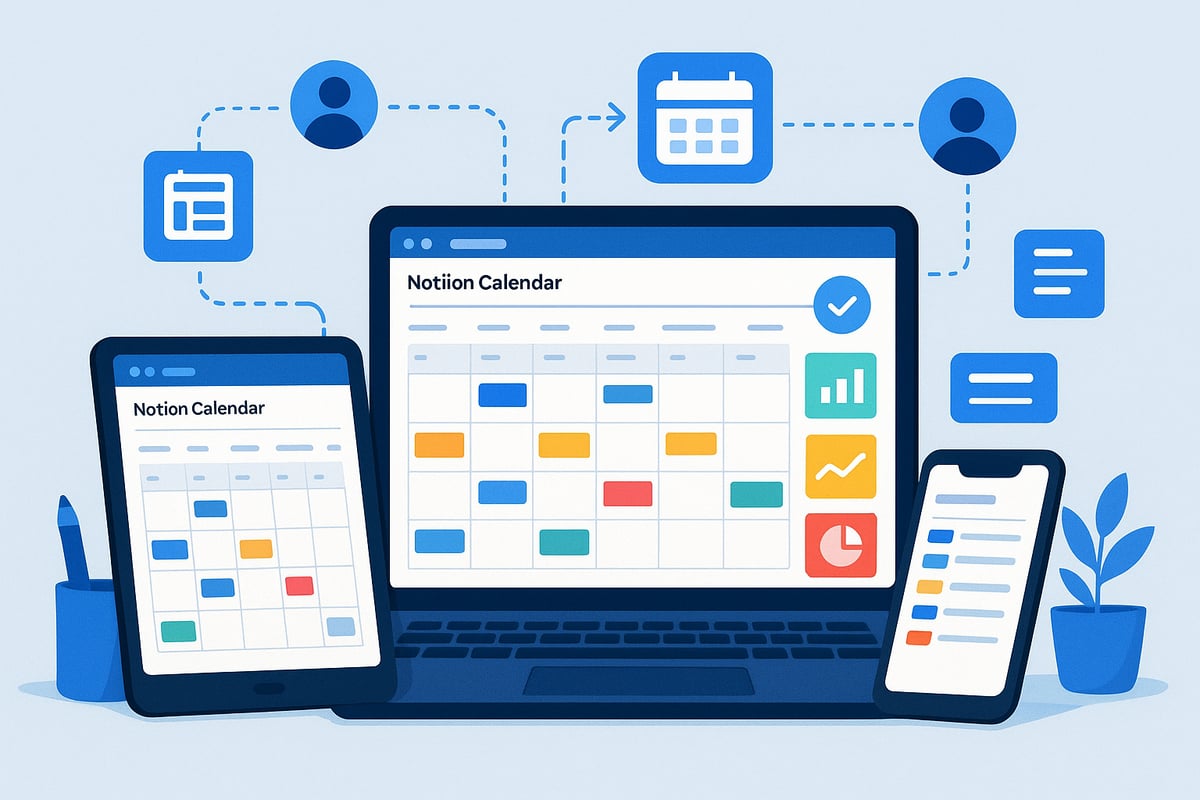
Notion Calendar stands out for its seamless integration with both Google Calendar and Apple iCloud, allowing users to bring all schedules into one unified view. With direct connections to Notion databases, you can link tasks, projects, and notes without switching apps or duplicating data.
For instance, professionals can see marketing campaign deadlines alongside meetings, all from the same dashboard. The app supports both desktop and mobile platforms, ensuring a consistent experience everywhere. Quick-glance widgets provide at-a-glance updates and monthly overviews.
What truly sets Notion Calendar apart is its ability to sync with databases, making it easy to manage and track events across all your workflows. If you want to dive deeper into how to connect your databases for calendar syncing, check out this Notion synced databases guide.
Key Features for Productivity
Notion Calendar offers a variety of customizable views, including daily, weekly, monthly, and even multi-time zone options. This flexibility allows you to tailor your calendar to your unique workflow and see what matters most.
Key features include:
Event linking to Notion pages for instant access to documents
Countdown timers for upcoming events
Built-in notifications and reminders
Keyboard shortcuts for rapid navigation, such as pressing ‘T’ for today or ‘S’ to share your availability
With over 1,400 ratings and an average score of 4.8/5 on iOS, Notion Calendar’s user satisfaction speaks volumes about its reliability and impact.
Collaboration and Sharing
Collaboration is at the heart of Notion Calendar. Sharing your availability is simple with scheduling links, making it easy for colleagues or clients to book meetings. The conflict avoidance feature prevents double-booking across multiple calendars, which is crucial for busy professionals.
Integration with conferencing tools, including Zoom and Google Meet, streamlines meeting setup. Team collaboration is enhanced by features that support global and remote teams, such as multi-time zone scheduling. International teams can easily coordinate meetings without confusion, thanks to these robust tools.
Accessibility and Customization
Notion Calendar is designed for everyone, offering support in over 12 languages and providing both light and dark modes for user comfort. iOS widgets make it easy to view your schedule directly from your Home or Lock Screen.
You can customize keyboard shortcuts and calendar views to suit your workflow. For example, students can tailor their calendars to display only class deadlines and study sessions. This level of personalization ensures that Notion Calendar adapts to your specific needs, making productivity both accessible and enjoyable.
Setting Up Notion Calendar for Maximum Productivity
Getting started with notion calendar is straightforward, yet a few strategic steps will ensure you get the most out of this powerful tool. By following these setup instructions, you’ll create a seamless system for managing tasks, meetings, and projects, all in one place.
Step 1: Download and Install the App
Begin your journey with Notion Calendar by downloading the dedicated app for your platform. Visit the official site or app store to find the latest version for Mac, Windows, or iOS.
After downloading, run the installer and follow on-screen prompts. On Mac and Windows, drag the app to your Applications or Programs folder. For iOS, tap “Get” in the App Store.
Once installed, open Notion Calendar and sign in with your Notion account. Make sure to update to the newest release to access 2025’s productivity features, ensuring your setup is future-proof.
Step 2: Connect Your Calendar Accounts
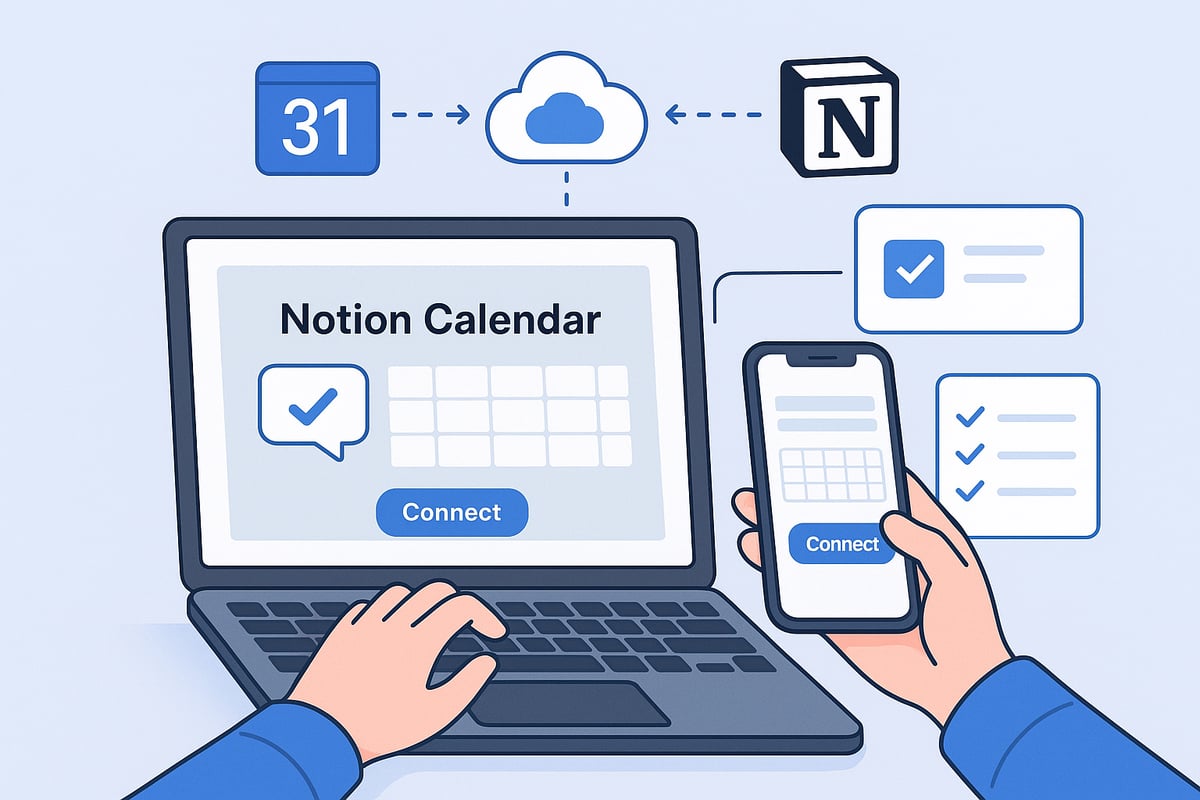
Next, link your Google Calendar and Apple iCloud accounts to notion calendar. In the app’s settings, locate the “Accounts” section and select “Add Calendar Account.”
Sign in securely to each service you’d like to sync. You can connect multiple calendars—work, personal, or side projects—and toggle their visibility as needed.
For example, a freelancer might display both client and personal calendars to see every commitment in one unified view. This step ensures your notion calendar reflects your entire schedule.
Step 3: Enable Notifications and Reminders
To stay on top of your schedule, activate notifications in notion calendar. Choose your preferred reminder intervals, such as 10 minutes, one day, or even a week before events.
Enable countdown timers in the desktop menu bar to keep upcoming meetings visible. Adjust notification settings in-app, tailoring alerts to your workflow.
With these reminders, you’ll never miss an important meeting or deadline. Notion calendar’s smart alerts help you focus on what matters, making time management effortless.
Step 4: Link Your Notion Workspace
Integrate your Notion workspace with Notion Calendar for a truly connected system. In the app, authorize access to your workspace and select which databases to sync.
You can choose to connect project trackers, task lists, or notes. Notion Calendar respects your privacy, using secure authentication to protect your data.
This link enables direct access to relevant pages from your calendar events. With everything connected, your productivity toolkit becomes both powerful and secure.
Step 5: Add and Sync Notion Databases
Now, add databases that include date properties to your Notion Calendar. Select which databases to display and decide how all-day versus timed events appear.
Drag and drop to schedule events directly on the calendar. Any changes sync instantly to your Notion workspace, keeping everyone in the loop.
For instance, a content creator can track editorial deadlines in real time. This seamless sync eliminates manual updates and boosts efficiency across projects.
Troubleshooting Common Setup Issues
Occasionally, you may encounter sync problems or time zone discrepancies when setting up Notion Calendar. If events aren’t syncing correctly, double-check your account connections and database permissions.
To resolve time zone issues, ensure your device and calendar settings match. For persistent challenges, consult the Notion Help Center or user community forums.
If you’re aiming to maximize your productivity from the start, consider reading this guide on how to use Notion effectively for extra tips. These resources help you troubleshoot and optimize your Notion Calendar experience.
Advanced Notion Calendar Integrations and Customization
Unlocking the full power of Notion Calendar means going beyond basic scheduling. With advanced integrations and customization, you can tailor your setup for any workflow, from personal productivity to complex team projects. Let’s explore how to create a seamless, flexible calendar solution that fits your unique needs.
Linking Databases for Powerful Workflows
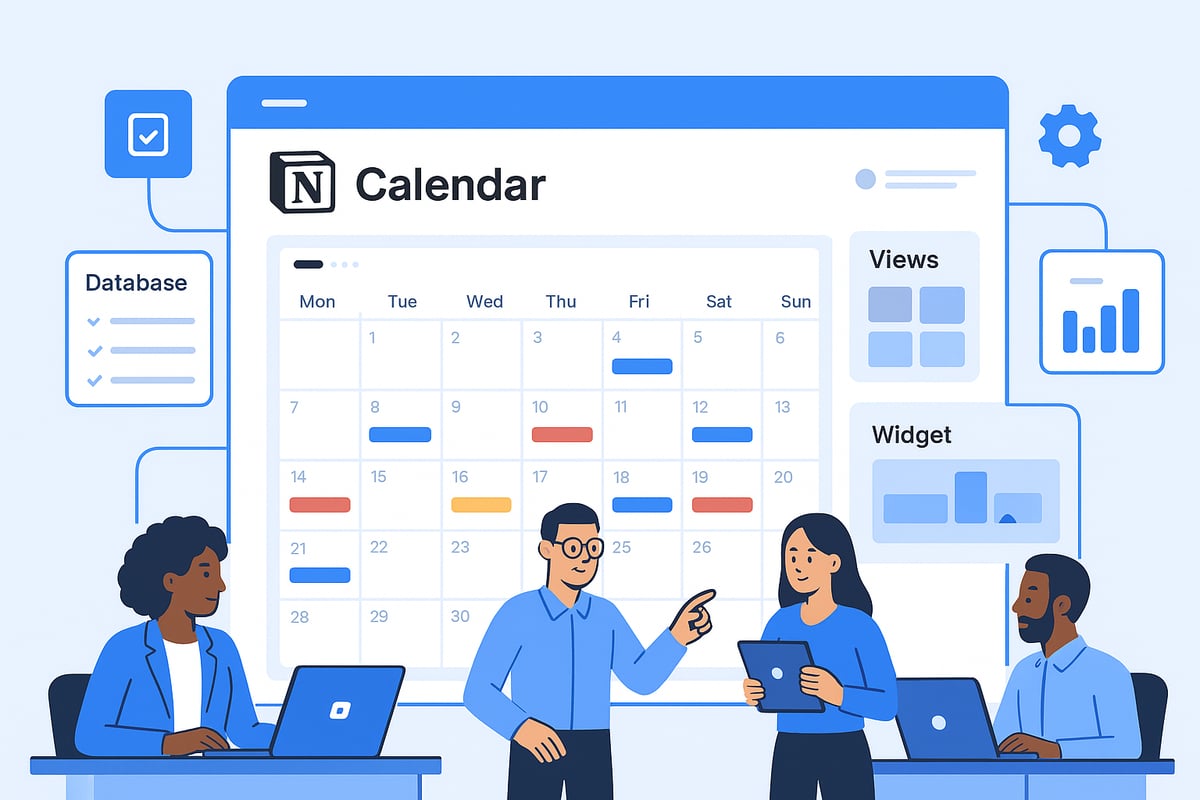
One of the key strengths of Notion Calendar is its ability to connect with Notion databases, transforming your calendar into a dynamic productivity hub. You can link personal task trackers to schedule focused work blocks, sync product roadmaps to visualize project launches, or connect editorial calendars for content planning.
For example, a product manager might link a roadmap database to Notion Calendar, allowing every sprint, milestone, and release to appear as discrete events. This integration ensures that deadlines and deliverables are always visible alongside meetings and personal tasks.
If you prefer ready-made solutions, you can explore Notion templates for business use to jumpstart your workflow. These templates provide structured databases that sync smoothly with Notion Calendar, making setup faster and easier.
Customizing Views and Layouts
Notion Calendar offers flexible views to accommodate any workflow. Easily toggle between daily, weekly, and monthly layouts, or use multi-time zone columns to coordinate with teams across the globe. Adjust settings to show or hide weekends and filter by event type for sharper focus.
An international team might rely on multi-time zone columns to schedule meetings without confusion. Meanwhile, a freelancer could hide non-work calendars for a distraction-free view of project deadlines. This level of customization makes notion calendar adaptable for both individual and collaborative environments.
Using color-coding and filters, you can visually separate projects, priorities, or even differentiate between work and personal events. With Notion Calendar, your schedule can match the way you think and work.
Utilizing Shortcuts and Widgets
Efficiency is central to Notion Calendar. Mastering keyboard shortcuts, such as pressing ‘T’ for today or ‘S’ to share availability, streamlines navigation. These shortcuts help you move quickly between views, create new events, and link items to Notion pages without leaving your calendar.
Widgets for iOS let you preview upcoming events or get a month-at-a-glance update directly from your Home or Lock Screen. Customizing widget appearance and function ensures instant access to critical information.
Students often use a Lock Screen widget on Notion Calendar to keep assignment deadlines in sight, while professionals rely on widgets for rapid meeting prep. By combining shortcuts and widgets, you save time and reduce friction in your daily routine.
Streamlining Scheduling and Availability
Notion Calendar simplifies scheduling with powerful availability sharing features. Create and send scheduling links so colleagues or clients can book meetings based on your real-time calendar. You can set recurring or one-off links depending on your needs.
Conflict avoidance is built in, preventing double-booking across multiple calendars. This is especially valuable for consultants or team leads managing various projects.
For example, a consultant sets up office hours using a single shareable link, allowing clients to book time without back-and-forth emails. Notion Calendar ensures that your availability is always accurate and up-to-date.
Collaboration and Team Features
Teamwork thrives in Notion Calendar, thanks to features designed for collaboration. Add participants to events, attach documents or conferencing links, and visualize everyone’s availability at a glance. This streamlines meeting coordination and keeps all relevant materials in one place.
A marketing team might use shared database events to plan campaign launches, with each member seeing deadlines, attached briefs, and meeting links directly in Notion Calendar. This unified approach minimizes miscommunication and boosts productivity.
By leveraging these advanced integrations and customization options, you turn Notion Calendar into a central platform for both personal and team success. Whether you are managing sprints, publishing schedules, or daily tasks, the app adapts to your workflow and keeps everyone in sync.
Real-World Use Cases: Boosting Productivity with Notion Calendar
Unlocking the full potential of your workflow starts with practical examples. The following real-world scenarios show how individuals and teams use Notion Calendar to streamline tasks, projects, and daily routines. These use cases demonstrate how a unified solution can transform productivity for diverse needs.
Personal Task Management
Staying organized is easier when you can visualize your entire day in one place. With Notion Calendar, users time-block daily tasks for optimal focus, ensuring that deep work, meetings, and breaks are all accounted for.
Block off specific hours for focused work
See to-do lists and deadlines alongside appointments
Quickly adjust schedules using drag-and-drop
For example, a remote worker uses Notion Calendar to allocate morning hours for deep work and afternoons for meetings, reducing the risk of distractions and maximizing productivity.
Project and Roadmap Planning
Managing complex projects becomes straightforward with Notion Calendar. Teams can link project milestones, deadlines, and deliverables directly to the calendar, enabling transparent tracking and accountability.
Visualize sprint cycles and release dates
Attach project documentation to calendar events
Monitor progress with all-day and timed events
A software team leverages Notion Calendar to map out sprint cycles, align on release dates, and keep every team member informed of upcoming deliverables, creating a single source of truth for the project timeline.
Content Planning and Editorial Calendars
Content creators and marketing teams benefit from a unified editorial workflow. Notion Calendar allows you to manage blog and social media publishing schedules, with drafts and notes accessible from each event.
Plan publishing dates for articles and posts
Link drafts directly from calendar entries
Coordinate team reviews and approvals
A content strategist, for instance, uses Notion Calendar to track deadlines, attach content drafts, and oversee the editorial process, ensuring every piece is published on time and nothing slips through the cracks.
Academic and Student Productivity
Students juggle classes, assignments, and extracurriculars, making organization essential. Notion Calendar helps schedule lectures, track assignment deadlines, and plan study sessions, all in one customizable view.
Add class schedules and exam dates
Use templates for semester planning
Visualize academic and personal commitments together
To set up an efficient student workflow, the Notion student dashboard setup offers a step-by-step guide for integrating Notion Calendar with academic planning, helping students stay ahead throughout the semester.
Team and Client Collaboration
Coordinating with teams and clients requires clarity and flexibility. Notion Calendar simplifies sharing availability, scheduling meetings, and preventing conflicts across multiple calendars.
Share scheduling links for easy bookings
Avoid double-booking with conflict prevention
Attach meeting agendas and resources
A consultant, for example, uses Notion Calendar to coordinate client appointments, internal team check-ins, and project milestones, ensuring seamless communication and efficient collaboration.
Tips, Tricks, and Best Practices for 2025
Unlocking the full power of Notion Calendar in 2025 means going beyond the basics. By applying expert tips, optimizing your setup, and staying ahead of the latest updates, you can turn your calendar into a productivity engine. Explore these best practices to streamline your workflow and maximize every feature.
Mastering Shortcuts and Navigation
Efficiency is at the heart of Notion Calendar, and mastering keyboard shortcuts gives you the speed edge you need. Common shortcuts like T for today or S to share availability help you navigate without touching your mouse.
Power users rely on these to schedule meetings, update tasks, and move between calendar views in seconds. For a deeper dive into top features, check out this Notion Calendar App Features overview.
Optimizing Calendar Views for Your Workflow
Notion Calendar offers flexible views—daily, weekly, or monthly—so you can tailor your schedule for any situation. Switch between them to get the perfect perspective on your upcoming tasks and deadlines. Use color-coding to categorize events by project, priority, or team, making your schedule visually clear.
Apply filters to focus on specific calendars, such as only work meetings or personal reminders. Adjust settings to hide weekends or toggle event types, so your calendar feels uniquely yours. This customization keeps your workflow organized and stress-free.
Managing Multiple Calendars and Avoiding Conflicts
Balancing multiple roles can be challenging, but Notion Calendar makes it easy to manage work, personal, and side projects together. Add all your accounts, then selectively show or hide calendars as needed. Use conflict avoidance features to ensure you never double-book or miss a crucial meeting.
Set busy blocks to protect focus time, like family events or deep work sessions. With clear visibility, you can confidently accept invites and schedule new tasks without fear of overlap. This unified approach keeps your commitments in perfect harmony.
Enhancing Collaboration and Communication
Teamwork thrives when everyone is on the same page. Notion Calendar streamlines collaboration by letting you share availability through scheduling links, attach agendas or notes to events, and coordinate group meetings efficiently. Add conferencing details or documents directly to events for seamless meeting prep.
For distributed teams, use time zone features to ensure meetings fit everyone’s schedule. These tools foster clear communication and minimize scheduling headaches, making your team more agile and responsive.
Leveraging New Features in 2025
Staying updated with the latest Notion Calendar enhancements is key to maintaining productivity. In 2025, improvements include smarter widgets, expanded integrations, and more flexible reminders. Users now benefit from enhanced iOS widgets and customizable notification intervals.
For a comprehensive look at what's changed, consult the official Notion 2.48 Release Notes, where you’ll find detailed information on new features and user-requested updates. Adapting quickly allows you to leverage every tool for greater efficiency.
Troubleshooting and Support
Even the best systems face challenges. If you encounter sync issues, calendar discrepancies, or notification glitches in Notion Calendar, start with the built-in help center. Common fixes include re-authorizing accounts, checking time zone settings, or updating the app.
Here’s a quick troubleshooting checklist:
Reconnect calendar integrations
Verify event time zones
Adjust notification permissions
Consult user forums for tips
With robust support and a growing community, solutions are always within reach. Staying proactive ensures your calendar remains reliable and productive.
Top Notion Calendar Templates and Resources for Productivity
Unlocking the full power of Notion Calendar often starts with the right templates and resources. The right setup can transform your workflow, making productivity effortless and personalized. Explore curated templates, expert resources, and integration tips to tailor your Notion Calendar experience for 2025.
Curated Notion Calendar Templates
Choosing a curated template is the fastest way to get started with Notion Calendar. Top templates address a range of needs, from project management to academic scheduling. For example, you can find templates for:
Task and to-do tracking
Editorial calendars for content teams
Personal goal planning
Event and meeting scheduling
Many users appreciate templates that connect seamlessly with the core Notion Calendar features. For an in-depth look at available options, explore this Notion Calendar Review for expert analysis and user feedback.
Templates often include built-in views, color-coding, and automation. This allows you to visualize tasks and deadlines directly within your Notion Calendar, making it easier to stay organized.
BlocksPad: Premium Notion Templates for Productivity
If you want professionally designed templates tailored for Notion Calendar, BlocksPad stands out. Each template is crafted by a certified Notion creator, ensuring quality, usability, and seamless workflow integration.
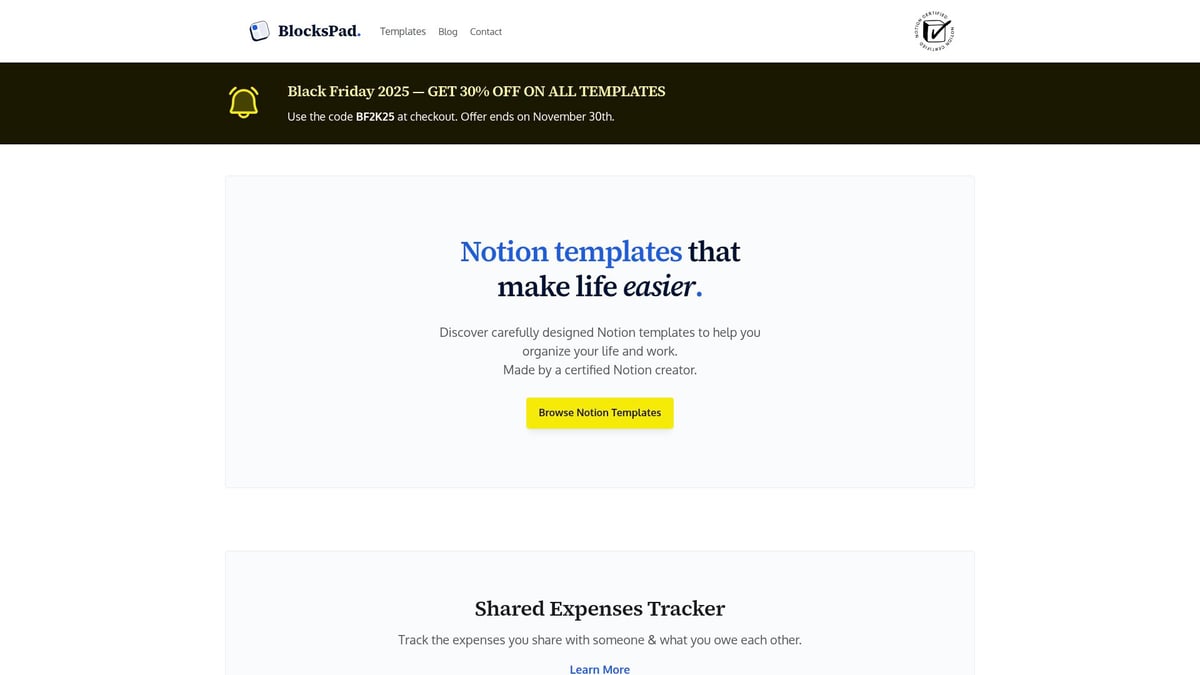
Popular BlocksPad templates include:
Expense trackers for managing finances
Travel planners to coordinate trips and events
Weekly meal planners for students and busy professionals
BlocksPad’s templates are especially valuable for those who want direct support or need customization. Students can benefit from exclusive discounts and seasonal promotions, such as Black Friday. With these templates, users can organize everything from academic schedules to grocery lists in one unified space.
How to Choose the Right Template
Selecting the ideal template begins with understanding your workflow. Start by asking:
What are your key productivity goals (task management, content planning, project tracking)?
Do you need personal or team collaboration features?
Are you looking for automation, reminders, or visual customization?
Once you identify your needs, test a few templates. Most templates allow easy customization, so you can adjust views, add databases, or tweak reminders. For teams, consider templates that support shared access and real-time updates.
Keep in mind that the best template is one you’ll actually use daily. Prioritize clarity, simplicity, and adaptability.
Additional Resources and Communities
Beyond templates, a wealth of resources can help you master Notion Calendar. Check out:
Notion’s official template gallery for the latest community submissions
The Notion Help Center for troubleshooting and setup guides
Online forums and user communities for sharing tips and best practices
Joining Notion-focused communities is a great way to exchange ideas, find inspiration, and access exclusive notion templates. Many users share their experiences and offer feedback on template effectiveness, helping you make informed choices.
Staying Updated with Notion Calendar
Staying current with Notion Calendar updates is crucial for maximizing productivity. Notion regularly releases new features, improved widgets, and expanded integrations based on user feedback.
To keep up:
Follow Notion’s official blog for release notes
Subscribe to newsletters for early feature announcements
Engage with the user community to learn from others’ experiences
Early adopters of Notion Calendar often benefit from the latest enhancements, ensuring their workflows remain efficient and future-proof.
Now that you’ve seen how Notion Calendar can bring all your tasks, meetings, and projects into one organized space, imagine taking your productivity even further with the right templates. Whether you’re planning your week, tracking expenses, or managing big projects, a thoughtfully designed template can save you hours and help keep everything in sync. If you’re ready to simplify your workflow and make the most of Notion Calendar in 2025, I recommend exploring some of the best options available.
Discover Notion Templates